A queue that shows every open ticket answers no question. An operator needs to check whether the payment hold from yesterday cleared. They need every ticket linked to a specific piece of production equipment. They need the urgent refunds that reached the escalation point. The list answers none of those. Queues that look universal hide the work that matters.
The fix is not more statuses or a permanent set of predefined bucket views. It is filtering that operators can assemble on the spot and grouping that turns filtered results into a working queue.
Issue type and tags form the primary axis. An issue type - Payment Exception, Equipment Failure, Site Visit Request - anchors the ticket category. Tags add cross-cutting signals: urgent, pending-third-party, compliance-reviewed. A support lead who wants every open Payment Exception tagged compliance-reviewed filters on both fields. No one has to populate a custom status column.
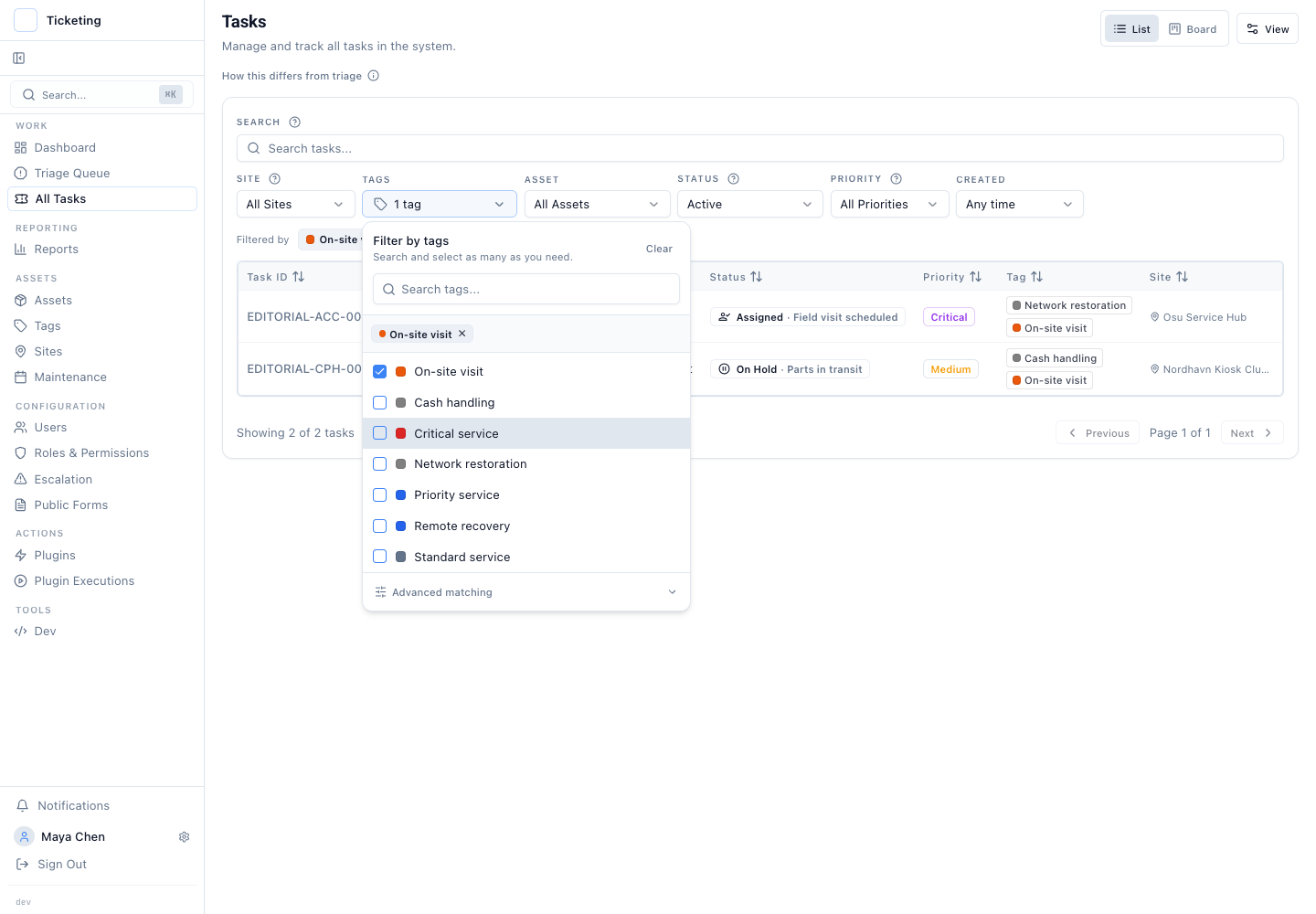
Direct filtering removes a coordination failure most teams do not recognise. An operator opens a ticket for a vendor bank-detail change and tags it compliance-reviewed. The filter that should surface that ticket later relies on someone manually setting a matching status. If the status and tag drift apart, the filter breaks silently. Latch filters on what is already recorded in the ticket, not on a separate classification that must stay in sync.
Asset filter brings the service inventory into the search. A ticket linked to a generator, terminal, kiosk, or other managed asset becomes findable through that relationship. If one device starts generating repeat tickets, filtering by asset lets the coordinator see the pattern without relying on the asset name appearing consistently in ticket text.
When tickets are not associated with an asset record at creation, the filter returns nothing - even if the problem is clearly about a particular unit. This is an honest boundary. The filter depends on the asset link being set during triage or later in the workflow. Teams that link assets late, or inconsistently, will get partial results. The tool does not infer the asset from ticket text.
Matching rules - match-any and match-all - control how multiple filter values combine. Match-all returns the narrow intersection: tickets that carry both 'chargeback' and 'VIP customer'. Match-any returns the broader union: anything that involves either a chargeback or a VIP customer. This is a simple control with disproportionate impact on queue hygiene. The operator who sets match-all for a safety-related review does not accidentally blend in tickets that share only one signal. The operator who sets match-any for a morning standup triage gets the coverage they need without three separate searches.
Misconfiguring the matching rule introduces a failure mode worth naming. A safety lead who applies match-any to a list of tags intended to sift a narrow review - say, 'safety' plus 'field-reported' - ends up with every ticket that carries either tag, not the subset that carries both. The queue appears larger and less actionable. The operator may assume the filter is broken when it is working exactly as told. The correct choice depends on the question: a narrow safety review demands match-all; a broad triage scanning for anything urgent or high-priority demands match-any.
Result grouping folds the filtered set into a workable structure. Grouping by status, priority, tag, site, reporter, assignee, source, created age, or SLA organises the queue without creating permanent buckets in the status workflow. The chosen grouping follows the operator's view preferences and can also be represented in the page URL. This matters because unified triage without a shared inbox depends on operators being able to reshape the intake view around the question in front of them.
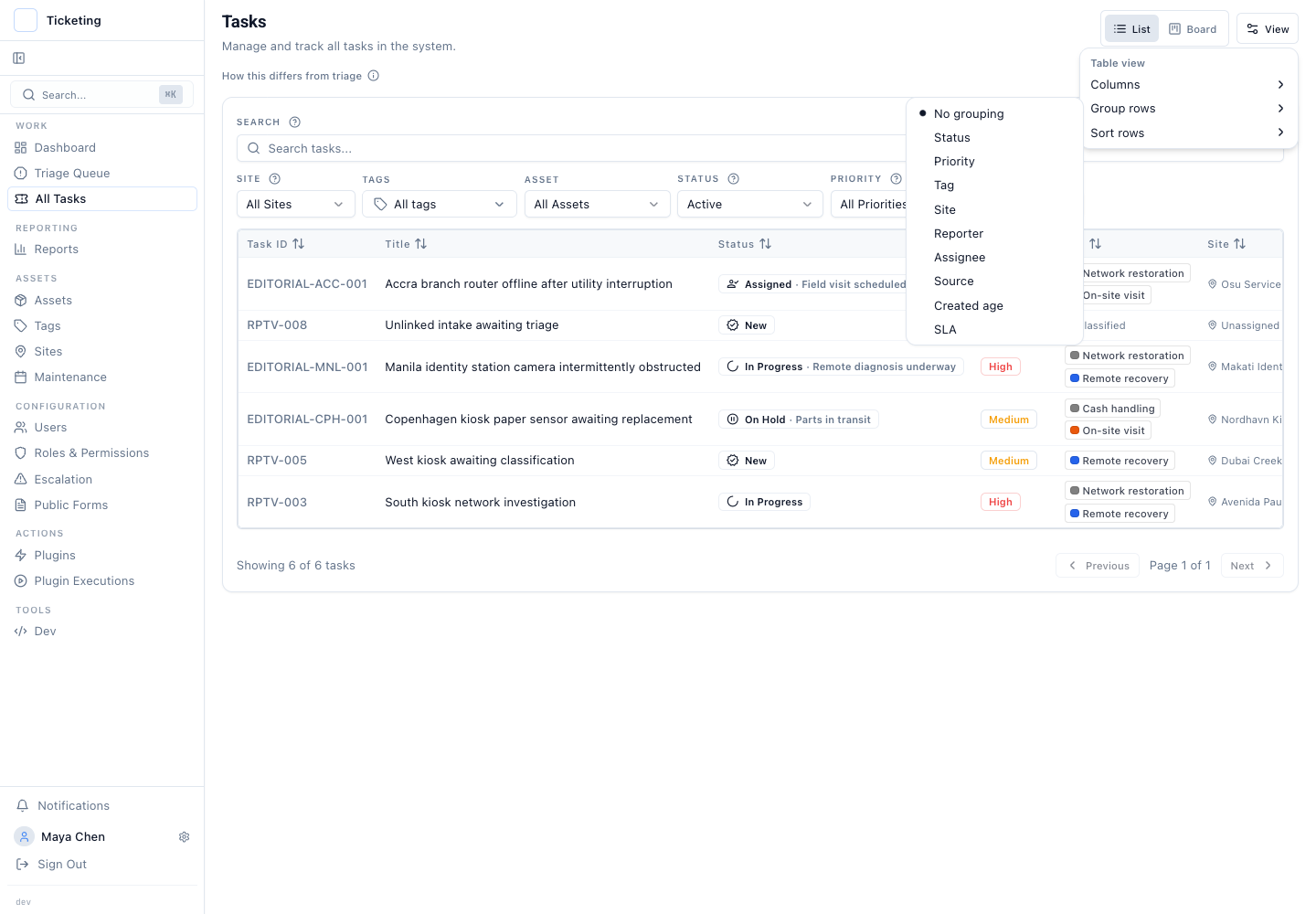
Grouping is still a queue presentation choice, not a named analytical definition. A recurring review needs a controlled measure, time window, filters, and grouping that teammates can reopen. A saved report is the better fit. The queue view serves live operational discovery; the reporting workspace serves repeatable analysis.
Together, filters and grouping let an operator build a working queue that answers a specific operational question: "Show me all unresolved tickets tagged safety-issue and grouped by site." The queue serves that question until the operator changes or resets the view.
This is not a custom reporting engine. It is a discovery tool for the operator who is working the queue before the report exists. When the pattern requires deeper analysis - a trend across weeks, a pivot by asset model - saved reports pick up from where the grouped view leaves off. The two capabilities are adjacent but not the same. Filters and grouping belong to the moment of triage; reports belong to the weekly review. Using filters to produce a daily dashboard may work for a few weeks, but without persistence it invites manual repetition errors. The honest operating rule is: filter and group to answer the question in front of you now, then promote the pattern to a report if the question recurs.
Read the broader context in the July product update and ticket status subcategories.