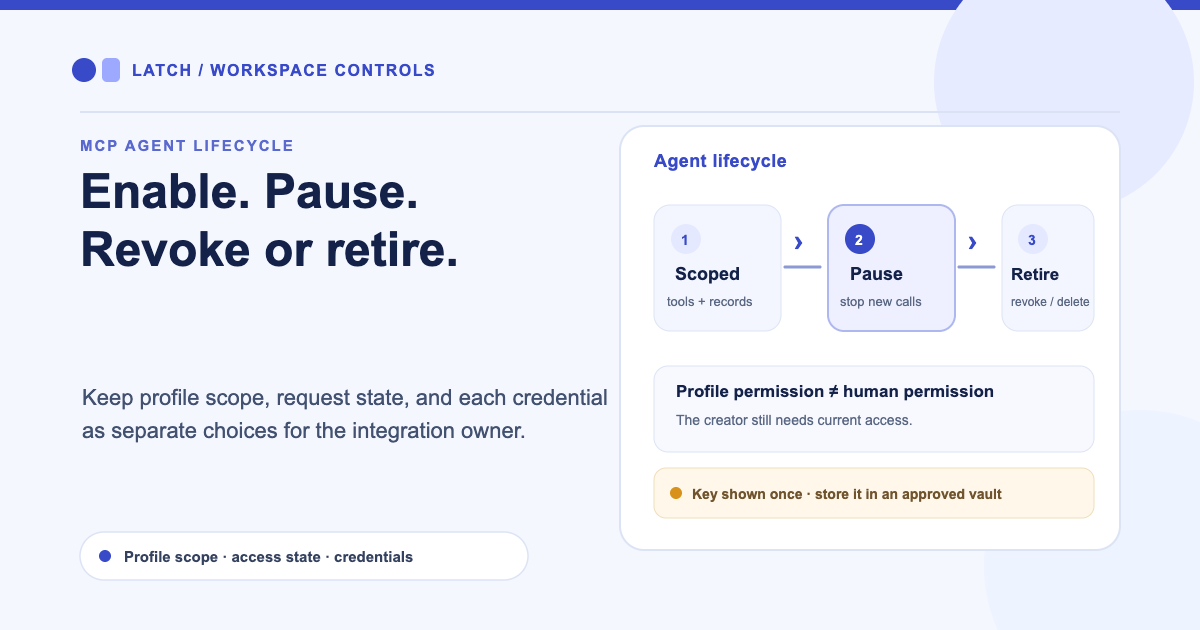
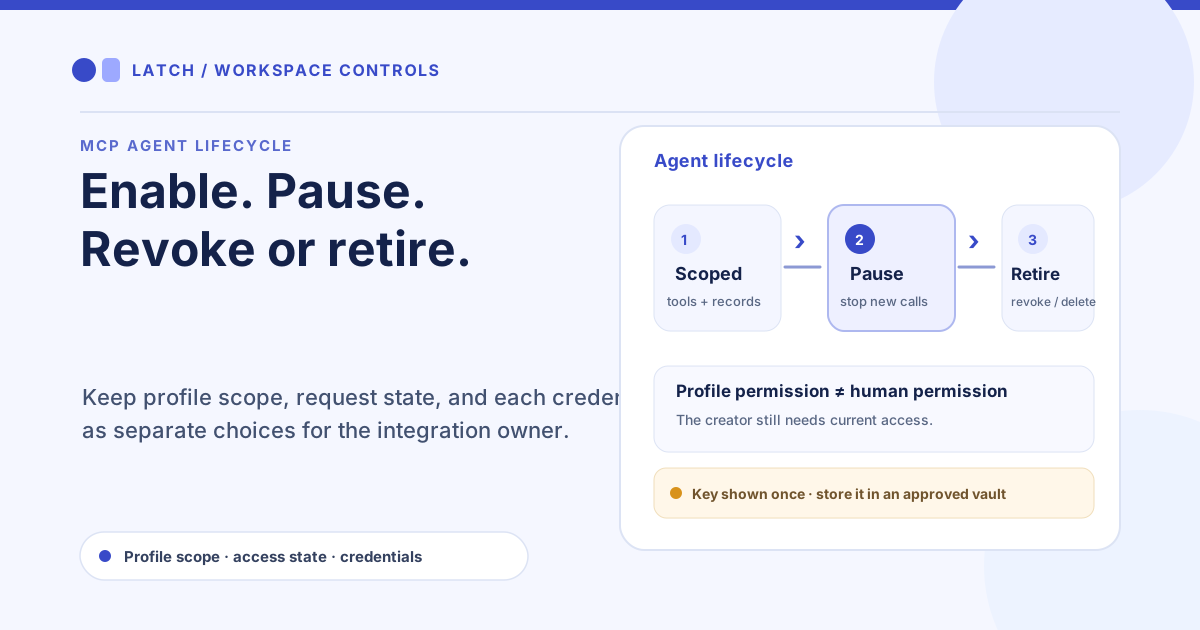
An operations team gives an MCP agent access to retrieve a narrow set of ticket details. A month later, the workflow changes. The team needs to stop new requests today, keep the profile for review, and decide whether the credential should be revoked or the agent retired. Latch now exposes those lifecycle choices in its human dashboard.
Give the agent a defined scope
An authorized dashboard user first enables MCP Agents under System Settings → General and saves the settings. In the MCP Agents tab, they can then create an agent profile, choose its permission mode and allowed tools, and generate a key. The key is shown once, so copy it directly into the client’s approved secret store. If it is lost, revoke it and issue another rather than treating the dashboard as a credential vault.
Choose the narrowest mode that fits the job. A scoped profile can call only the tools and records its configured permissions allow. An administrator mode carries broader workspace authority. The own-tickets mode applies an additional boundary based on the agent’s identity and ownership of each ticket. The human who created the profile still needs current permission for the requested operation; the agent profile does not turn a limited human account into an administrator.
That distinction matters when a support assistant reads a queue. If it only needs to summarize tickets created by or assigned to its agent identity, select that mode and test the denied cases as well as the successful ones. Browser-based Ticket Owner access for a human collaborator is a separate role with its own enforcement.
Pause requests without discarding the profile
In System Settings → MCP Agents, select Disable on the agent to stop new requests across that profile’s keys. Requests already in progress may finish. Keys remain attached to the profile, so selecting Enable restores only credentials that are still valid, unexpired, and unrevoked. This is useful during an incident review or planned maintenance when the team wants a clear pause and a deliberate restart.
Revoking a key is narrower: it invalidates that credential while leaving the agent profile available for another key. Deleting an agent retires the profile and removes its keys and linked OAuth connections; existing ticket and audit activity remains. Use deletion when the integration is no longer part of the operating model, and use revocation when one copied or misplaced key needs to stop working.
The controls answer different questions: should this profile make new requests, should this credential remain valid, and should the profile continue to exist? Record the owner and purpose of each agent so the next administrator can choose the right action.
Keep client linking separate
These controls govern MCP agent profiles and their credentials inside Latch. OAuth client registration and account linking are still pending configuration, so this is not a claim that a user can connect the agent directly to ChatGPT. A client must use an explicitly supported connection path and the key provisioned for that profile.
Before enabling an integration, check its tool scope and the workspace’s separate plugin and permission gates. If the external endpoint is an action provider, review the provider network boundary as a separate control. Start with one read-only workflow, verify which requests are allowed and denied, then expand only when the operating owner can explain why each added permission is needed.
For the broader permission model, see what an AI agent token can reach.