An operator spots the right next step in the task list, then has to open the record to make a small status or assignment change. The queue loses its value when every correction requires a screen change.
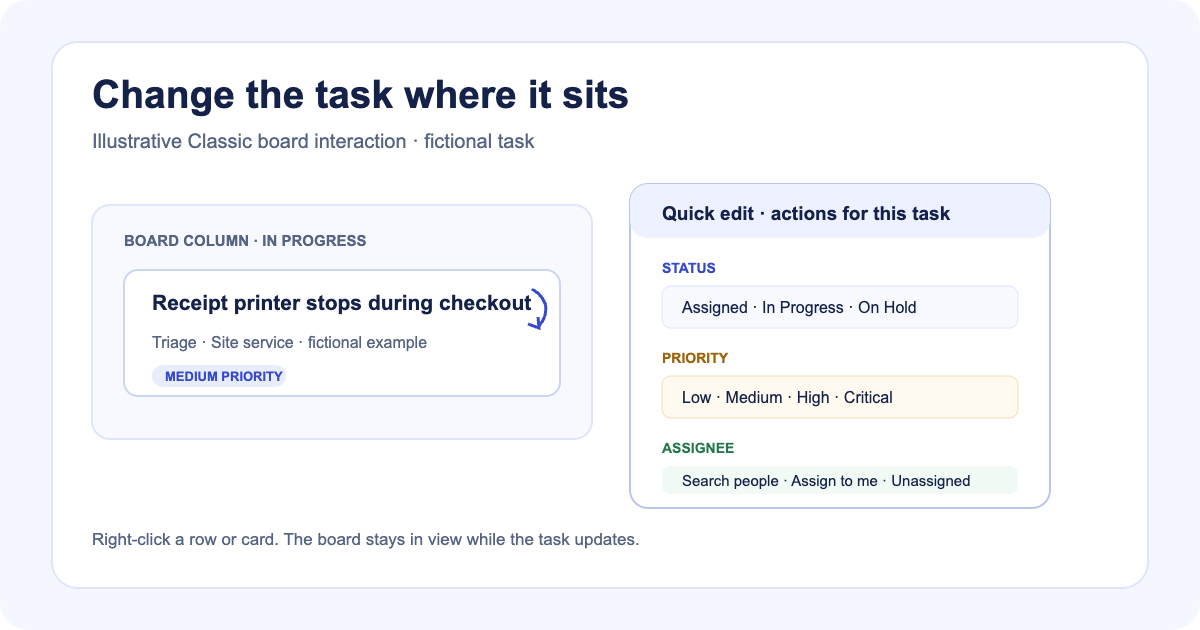
Classic task quick edit puts status, priority, and assignment choices on the task itself. Right-click a row in Triage or All Tasks, or a card in Board view, to open the menu.
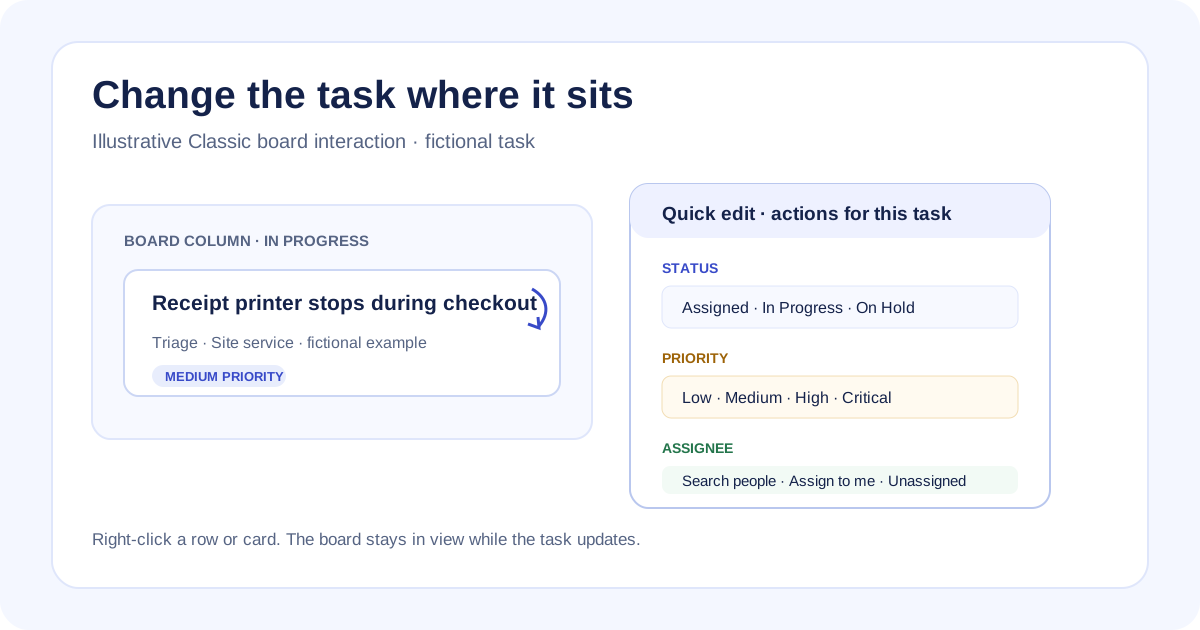
Illustrative workflow diagram; it is not a product screenshot.
Make the common change where the task appears
The same menu works on list rows and board cards. Choose a status from the workflow options available in the workspace, change the priority, or expand Assignee to search for a person. Assign to me appears when the current operator is eligible; Unassigned clears the assignment.
In a fictional branch-service example, an operator who has reviewed a printer fault can select its next status and assign an eligible technician from the task list. The example shows where the control sits; the team still decides whether the work is ready for that change.
The board keeps its separate drag handle and move controls. A quick edit does not take over the gestures people use to move a card. The selected value remains visible in the task marks and the existing status and priority labels.
Choosing an option saves the change and closes the menu. While a save is pending, further edits to that row stay disabled. On success, the views refresh and show a confirmation. If a task leaves the Triage status bucket, it leaves that queue; the change is reflected in the task record.
Keep workflow and permissions in charge
Status choices follow the configured workflow contract. Assignment choices come from the people the operator is allowed to assign. The server still checks permissions, task state, and conflicting updates. Read-only tasks and unavailable actions stay disabled.
Duplicate is a special status choice because it needs a relationship to another task. Selecting it opens an original-task chooser; the duplicate link and status change are saved together after confirmation. Cancelling the chooser leaves the task unchanged.
The quick-edit introduction uses a fictional example and never modifies actual tasks. It appears automatically the first time someone reaches Triage or All Tasks after the feature version ships. It explains the right-click gesture, status and priority, assignment, and the save result.
This is a focused editing path. Open the ticket when the change depends on its description, attachments, activity, or other context. Quick edit is for the update the operator already understands and wants to make without losing the task list around it.
The ticket owner role limits operators to the tickets they created or currently own. The Projects overview shows how task context can extend to sites and assets, while replayable walkthroughs explain a longer product flow. For the task-list basics, use the find-a-ticket guide.