A standby generator fails to take load during a mains outage. The engineer on site is assigned to the ticket, but the project manager and the support colleague who logged the call also need to know when it changes. The usual workarounds are a forwarded email thread or a broader role. The thread keeps going after the ticket closes. The broader role opens every other project in the workspace.
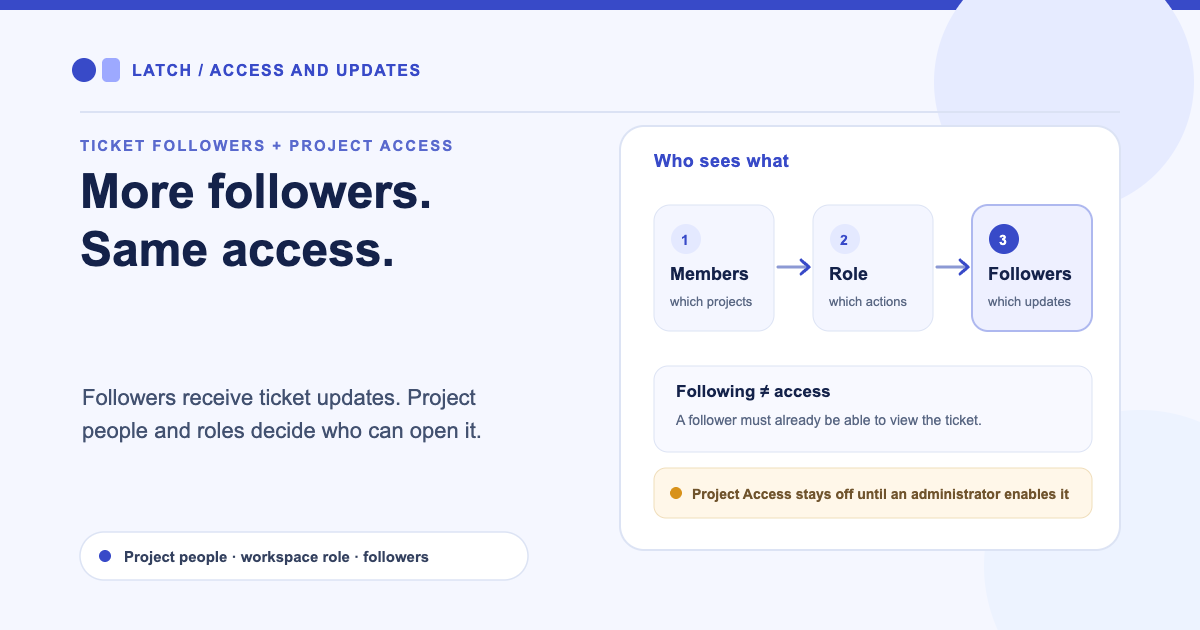
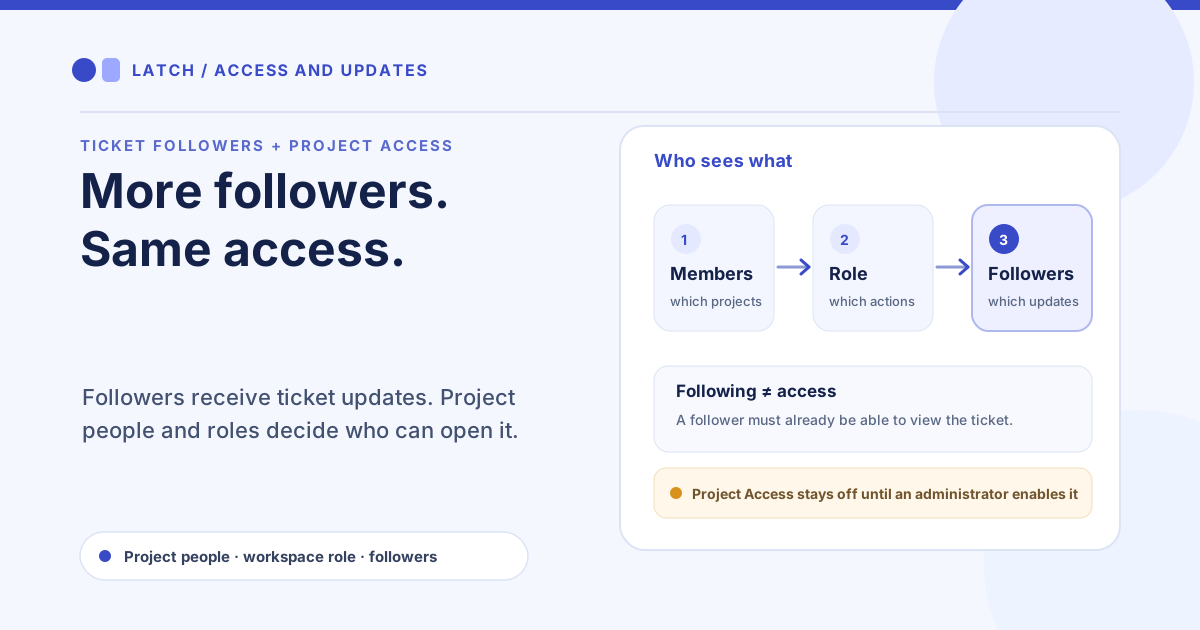
Latch now keeps updates and access apart. Ticket followers decide who receives updates about one ticket. Project people, together with the Project Access setting, decide which projects a person can open at all. The workspace role still decides what that person can do.
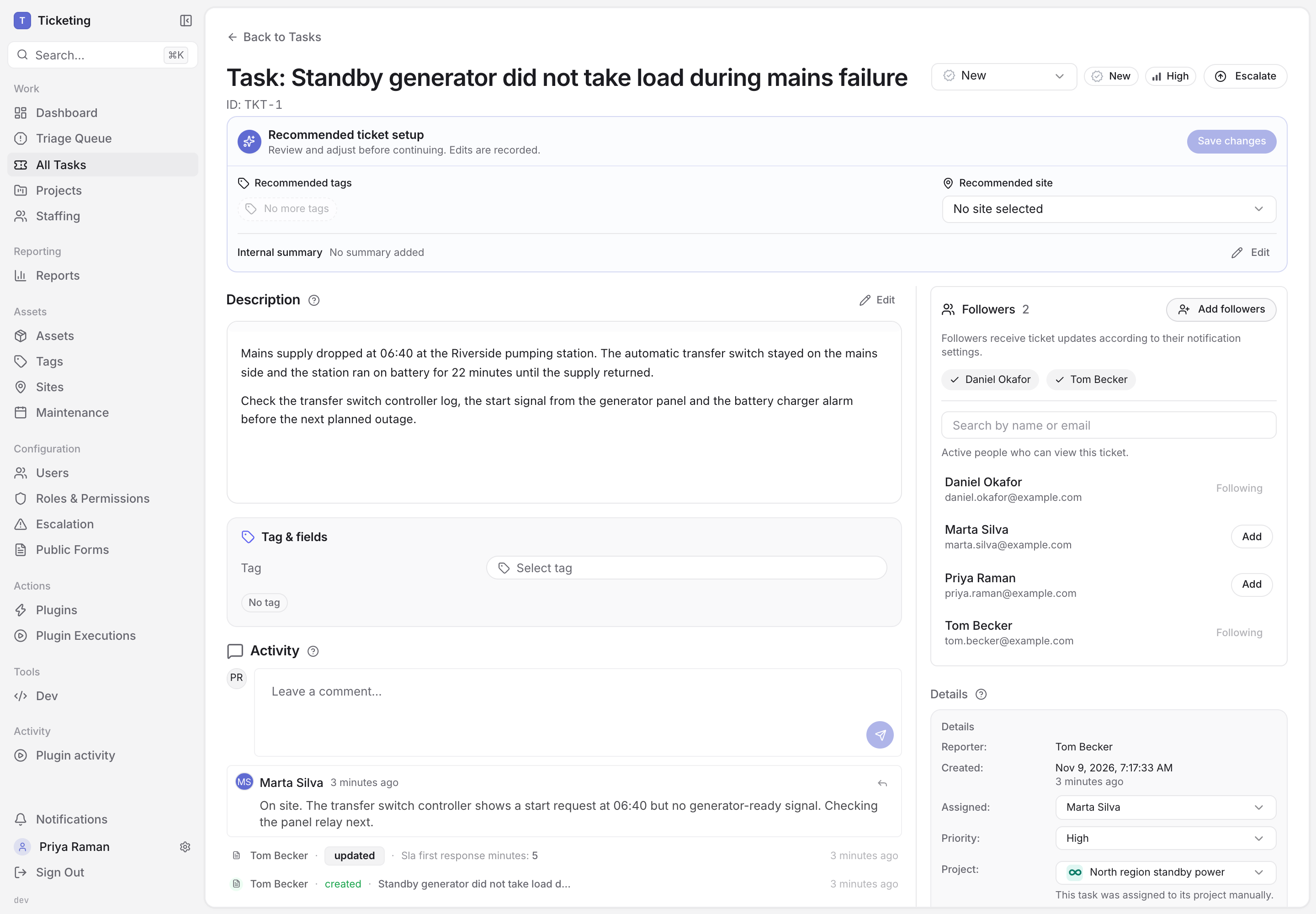
Product capture from 9 November 2026 with fictional sample data.
Following a ticket adds updates, not permissions
The Followers panel sits at the top of the ticket sidebar. Select Add followers, search by name or email, and choose from the list headed "Active people who can view this ticket." Anyone who can view the ticket can add a follower, including themselves.
In the fictional example above, the ticket belongs to a project called North region standby power. Marta Silva, a field engineer, is assigned. Daniel Okafor owns the project and already follows the ticket. Tom Becker logged the call from the support desk, so he is added next and now shows as Following in the list.
The list is narrower than the workspace. Leo Martins is a field engineer on the same project, but his role covers only tickets assigned to him, so he is not offered for this one. A colleague with the Ticket Owner role who neither created nor is assigned to the ticket is not offered either. Inactive and suspended people never appear.
Adding a follower does not grant access, change the assignee, create an account or send a message at that moment.
Followers receive the updates they have turned on
A follower receives the same ticket notifications as other participants: comments and replies, and status and SLA changes such as priority, status, due date, breach and escalation. Delivery follows each person's own notification settings for email, in-app and browser notifications. If Tom has turned off Comments and replies, following the ticket does not turn it back on. Latch does not notify the person who made the change.
Eligibility is checked again when each update is sent. A follower who is suspended or loses access to the ticket stops receiving updates and drops out of the follower list.
Project people decide where someone can work
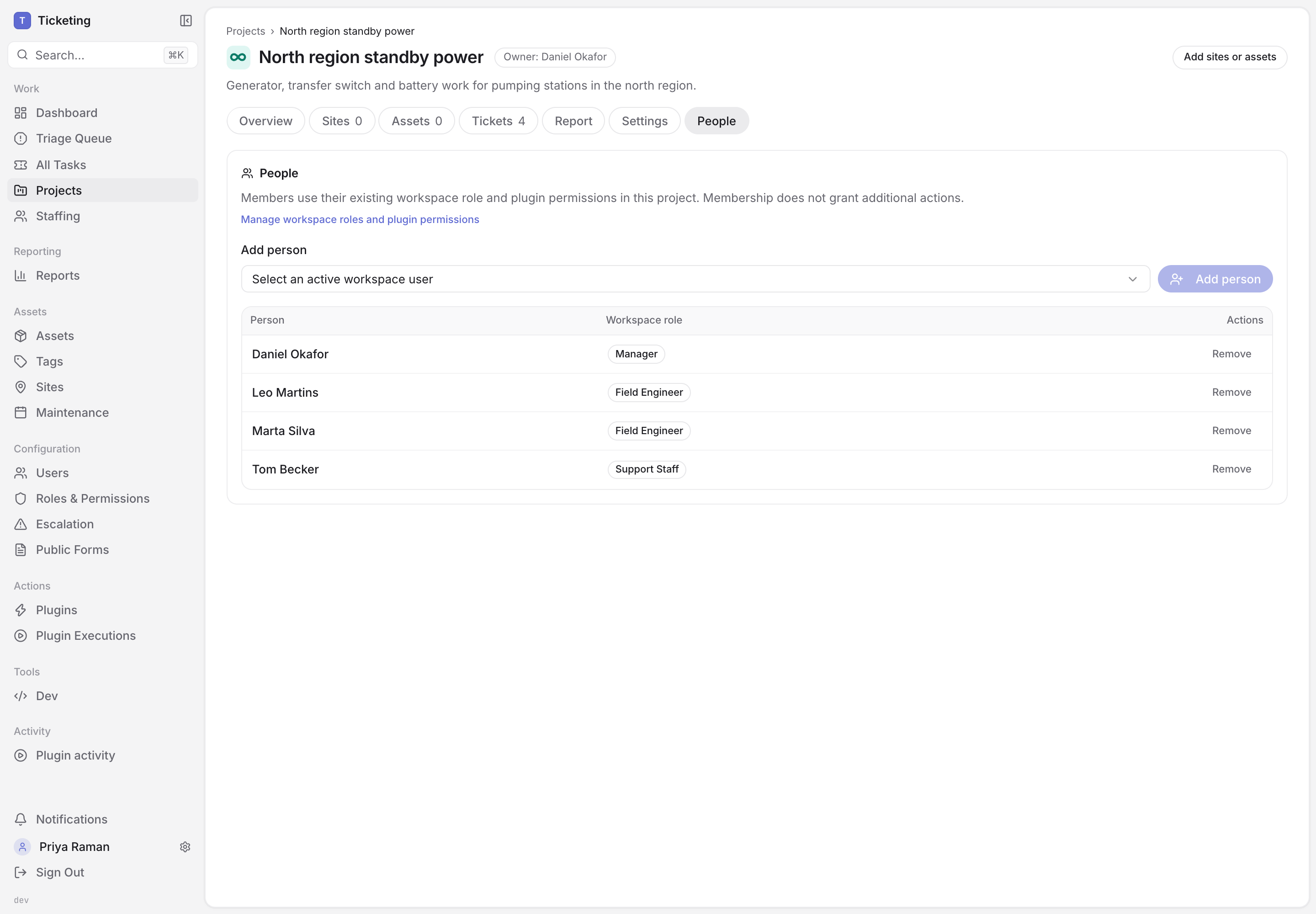
Product capture from 9 November 2026 with fictional sample data.
Administrators manage membership from the People tab on each project. Select an active workspace user and choose Add person. The tab states the rule directly: members use their existing workspace role and plugin permissions in the project, and membership does not grant additional actions.
Leo is now a member of North region standby power. He still sees only the tickets assigned to him, because his Field Engineer role has not changed. Membership answers where a person can work. The role answers what they can do there. There is no separate project role to configure.
Owning a project or being assigned one of its tickets does not make someone a member. Daniel owns this project and is also listed under People, because ownership alone would not keep his access once Project Access is on.
Project Access turns membership into a boundary
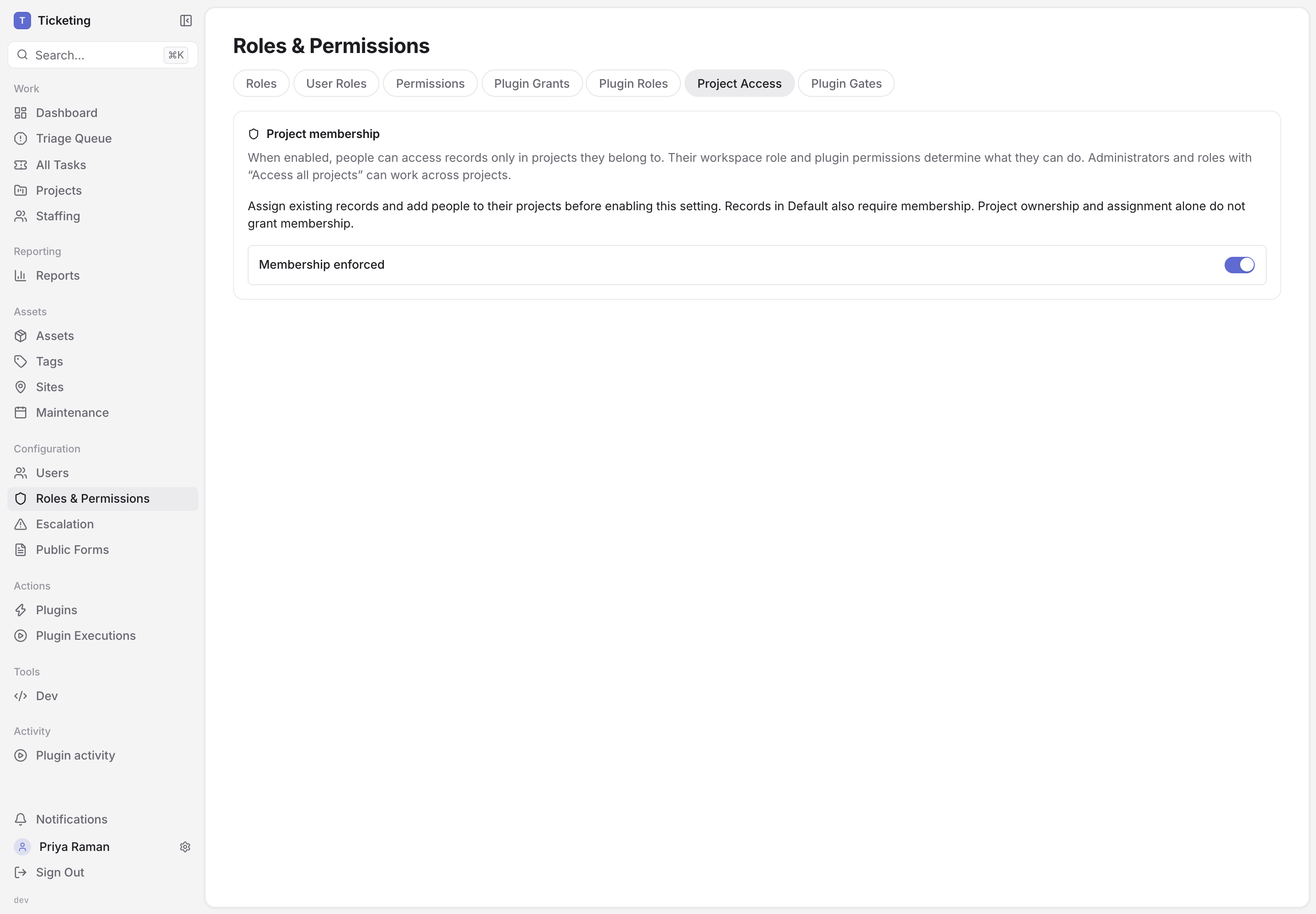
Product capture from 9 November 2026 with fictional sample data.
Membership has no effect on visibility until an administrator turns on Project Access under Roles & Permissions. The setting is off by default. When the switch reads Membership enforced, people can access records only in projects they belong to. Lists, counts, search and project summaries leave out everything else. Administrators and roles with the Access all projects permission can still work across projects.
The Default Project is a real project and requires membership too. A person who belongs to no project sees no records. That is why the card asks administrators to assign existing records and add people to their projects before enabling the setting.
Some shared views reach across projects. Global reports and the shared site and asset directories need cross-project access in addition to the usual role permission. Site and asset views inside an accessible project remain readable. People limited to their projects cannot move a ticket to another project, including between two projects they belong to.
With Project Access on, followers must also be members
Notification delivery checks project access as well as ticket access while Project Access is on. A follower who is not a member of the ticket's project, and has no cross-project access, receives nothing from that ticket. Add the person under People first, then add them as a follower.
For the generator ticket, Daniel and Tom belong to the project, so their updates keep arriving once the switch is on. A technician from another region who is not a member receives nothing from the ticket, even if someone adds them as a follower.
What these controls do not cover
Neither control recalls information that has already left the workspace. Email already delivered, files already downloaded and exports already taken stay where they are after someone loses membership. Project Access is one setting for the whole workspace, not a per-project choice, and it does not replace careful role design: a person with the wrong workspace role keeps the wrong actions inside every project they join.
Followers are for people who need to watch a ticket, not for handing it over. To change who is responsible, change the assignee. For a multi-site rollout, project people decide who can see the programme. Followers decide who hears about a particular site visit. Plugin actions on those tickets keep their own availability and approval controls.
See how Latch works, or talk to us about who needs to see your tickets.