Configuration · 7 steps
Add a nested choice field to a ticket type
Configure a nested ticket-type field, complete one classification path, and change or clear an answer safely.
Before you start
- You need permission to manage Tags and custom fields to configure the list, and permission to create or edit the ticket to use it.
- Choose the ticket type and the field you want to classify. This example uses Equipment support with a Problem field. Each field records one final choice.
- This guide covers ticket-type custom fields. Public form dropdowns remain ordinary single-level lists.
- This guide uses the desktop interface in English and illustrative sample records. Your workspace may use different names for tickets or types.
Open the ticket type’s custom fields
Open Tags and select the folder containing the ticket type. Find its row and open Custom fields.
Use an existing ticket type or create one in the appropriate folder before adding the field.
Add a Nested Choice List
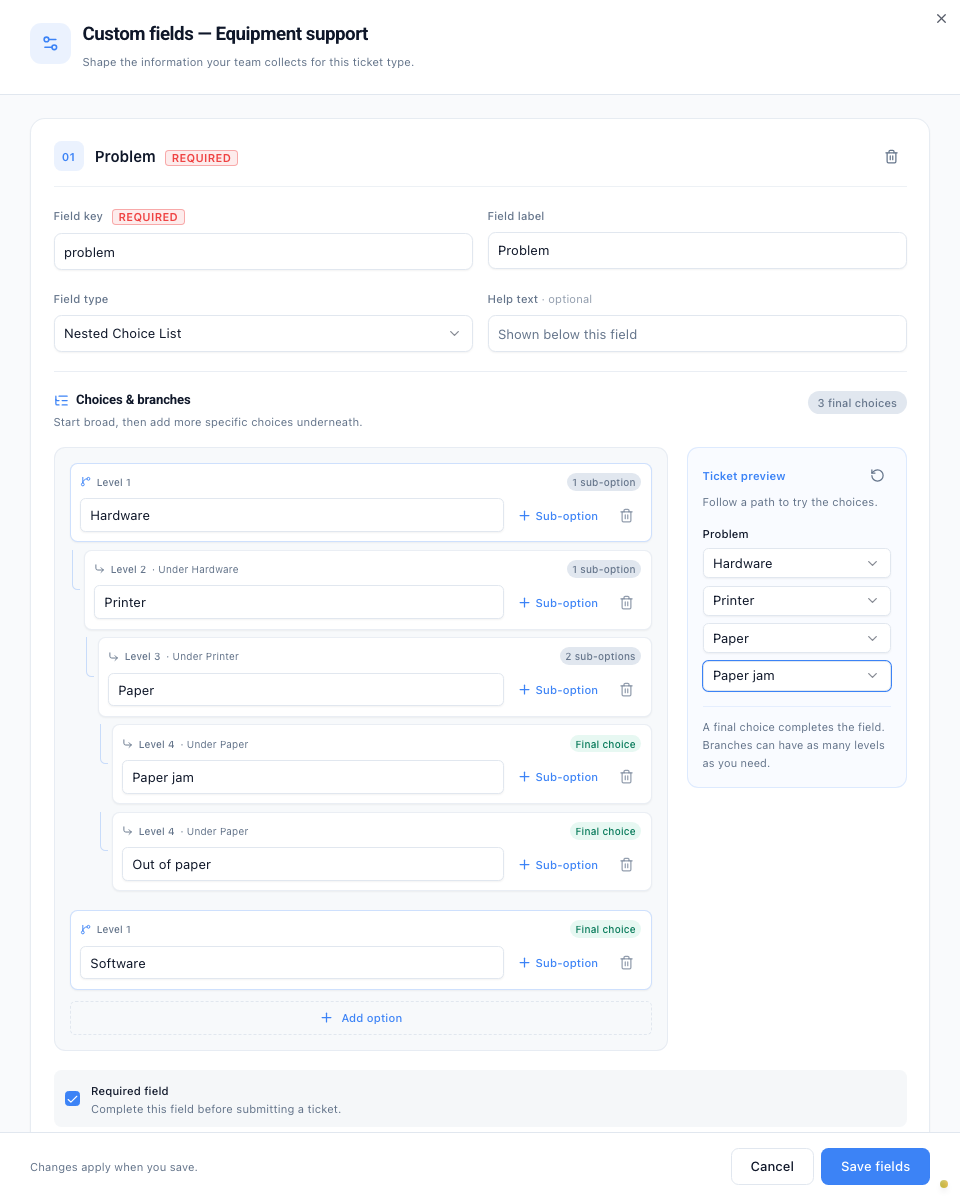
Select Add field. Enter a field key such as problem and a label such as Problem. Choose Nested Choice List as the field type.
Mark the field required if each ticket needs an answer. Leave it optional when an empty answer is acceptable.
Add options and sub-options
Select Add option and enter Hardware. Use Sub-option beside Hardware to add Printer beneath it. Add Paper beneath Printer, then Paper jam and Out of paper beneath Paper.
Use Add option again to add Software as a separate starting choice. The level and parent shown above each row help you check its position. Add sub-options wherever a choice needs more detail; branches can have different lengths.
An option without sub-options is a final answer. Use the remove button carefully: it removes that option and all the sub-options beneath it.
Use Ticket preview to try the dropdowns before saving. The Final choice badges identify answers that complete a branch.
Sample workspace · Select the image to view it full size. Save the list and complete a ticket answer
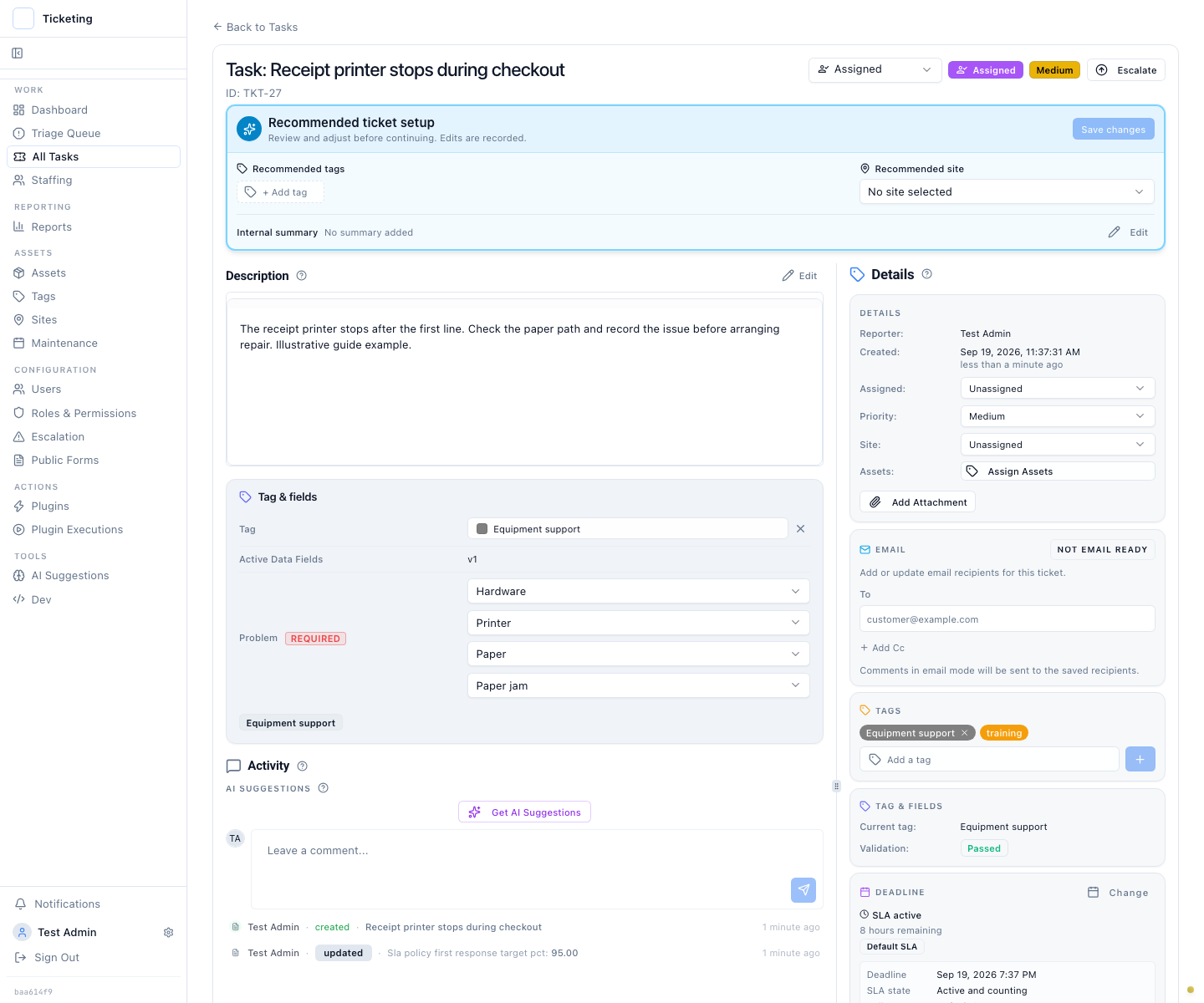
Select Save fields. Create or open a ticket using this ticket type, then find Problem in Tag & fields in the main work area.
Choose Hardware, then Printer, then Paper, then Paper jam. Each selection shows the next dropdown for that branch. A final choice completes the field. The Details and related context cards remain in the panel on the right on a wide screen.
When creating a ticket, complete the remaining required fields and submit the form. On an existing ticket, wait for the field update to save. Reopening the ticket restores the full selected path.
Sample workspace · Select the image to view it full size. Finish or clear a changed answer
Change an earlier dropdown to choose another branch. Latch clears the selections below it, so an old answer cannot remain attached to the new branch.
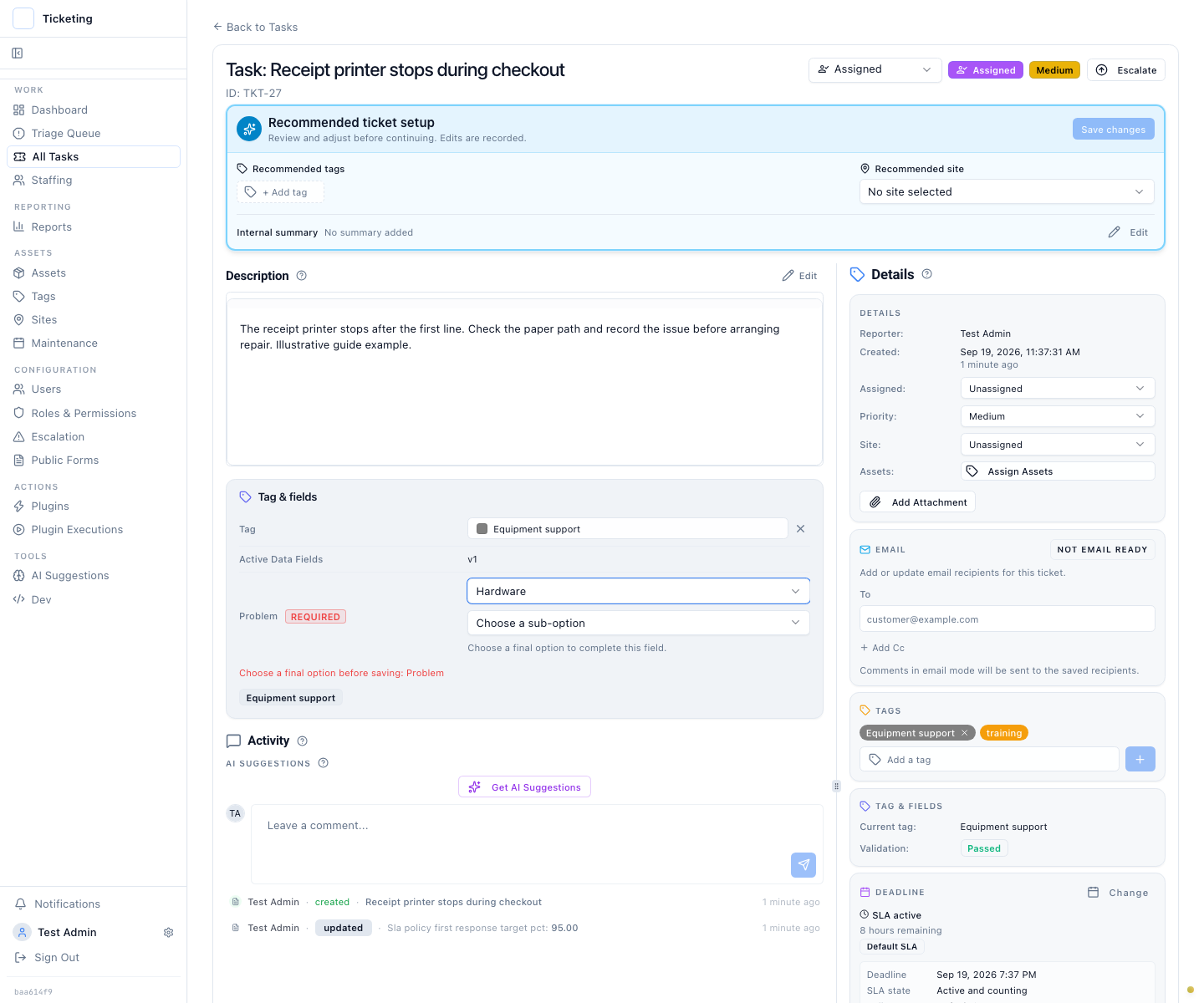
If the selected option has sub-options, choose a final option before saving. The unfinished branch stays local and blocks submission or autosave, even when the field itself is optional. A required field also cannot be left blank.
Choose No selection in the first dropdown to clear the whole field. An optional field can then stay empty; a required field needs a complete answer. Choosing Choose a sub-option in a lower dropdown clears that level and the selections beneath it.
Sample workspace · Select the image to view it full size. Use branches that explain the work
For an inspection, a list could follow Warehouse → Goods receiving → Loading bay. A field repair could follow Hardware work → Display → Cable → Reseat the display cable. A cathodic protection survey could use Potential measurements → Pipe to soil → Close interval on/off.
Claims teams can classify a motor case as Vehicle damage → Collision → Motor collision, a property case as Water damage → Escape of water, or a warranty fault as Product function → Electrical. These are ticket-type fields; a public intake form can keep its ordinary dropdown list.
Use labels your team recognises. A nested choice records one complete classification; it does not configure routing, approvals, or the visibility of other fields.
Review existing answers before restructuring
Renaming an option preserves its identity. Removing it, or adding sub-options beneath an option that used to be final, changes which answers are valid for future edits.
Existing answers are not automatically migrated. Review affected tickets and choose replacements where needed. If the saved choice is no longer available, the ticket editor displays it and asks for an available option.
Check the result
The ticket type has a nested list, and operators can complete one valid path or clear an optional answer without retaining selections from another branch.