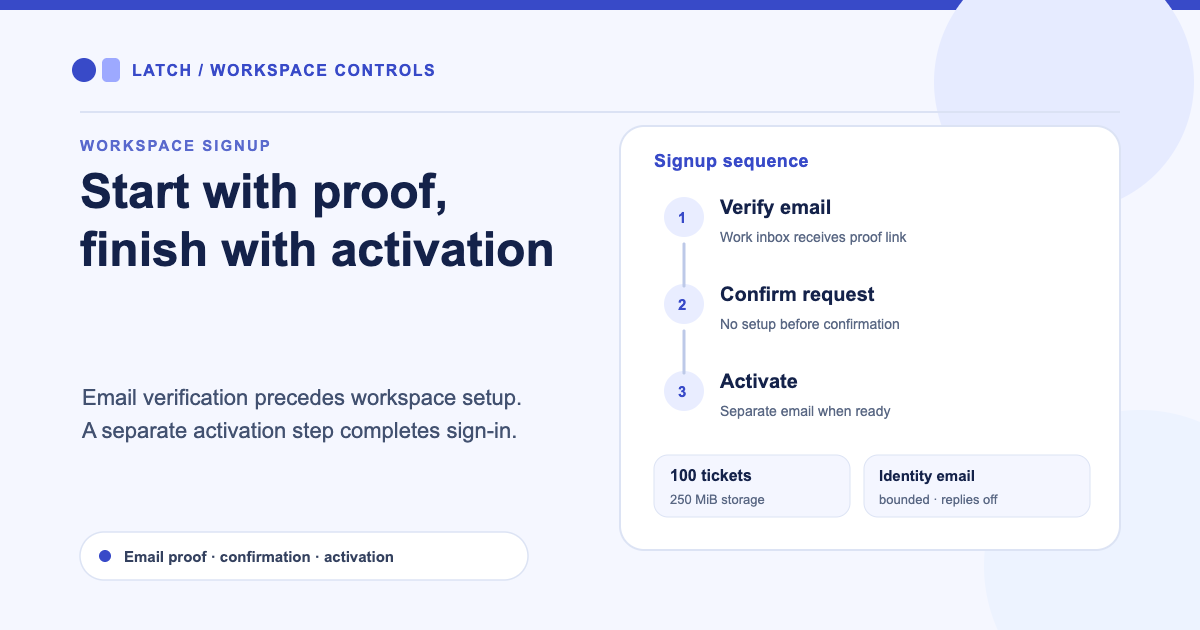
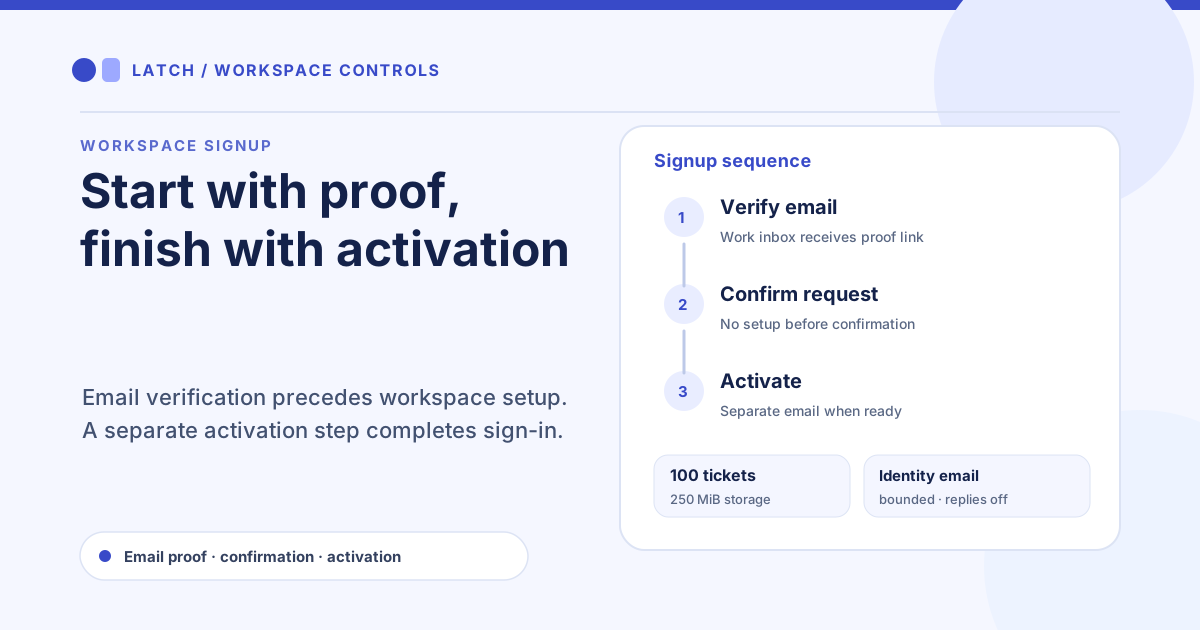
A team can agree on a new service queue in a meeting and still lose a day finding the right sign-in address, proving who requested it, and working out when it is ready. Latch workspace signup makes those steps explicit: prove the work email, confirm the request, wait for setup, then activate the account.
Prove the request before setup begins
The public form asks for a work email, organization name, and requested workspace address. A CAPTCHA check helps screen automated submissions. Latch then sends a verification message to the work email. Opening its link alone does not start setup: the recipient must confirm the request on the page. No address is reserved and no setup job is created before that confirmation.
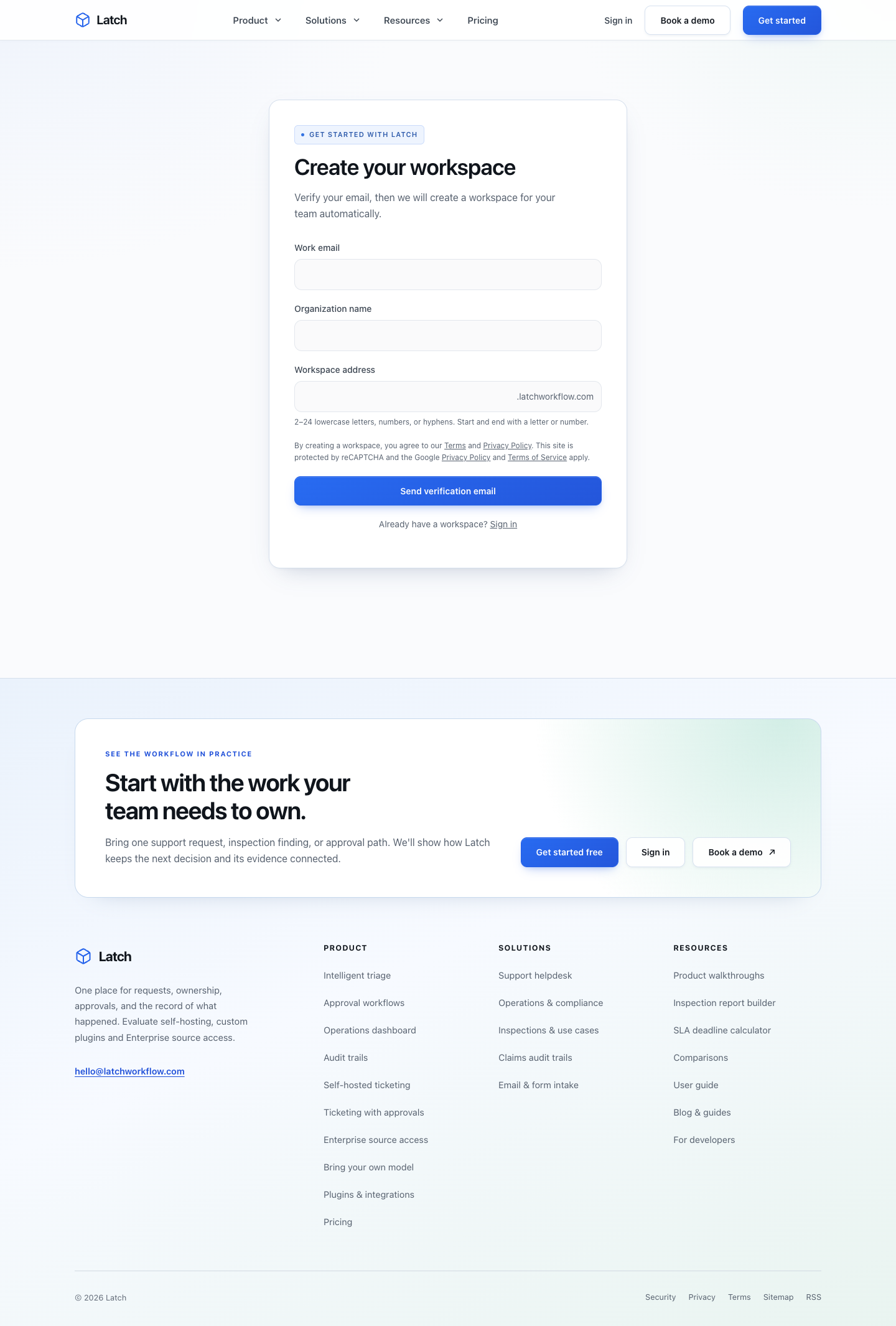
The public signup form, captured on 2026-10-05. The page was viewed without entering data or submitting the form.
That extra confirmation gives the person receiving the email a clear decision point. If the requested address has already been taken, Latch reports the conflict during verification instead of silently assigning a different address. After confirmation, a status page shows setup progress. When the workspace is ready, a separate activation email provides the next step for setting a password and signing in.
Find the workspace before you enter credentials
The person who requested the workspace may know its address. A colleague joining later may only know the team name. On the sign-in page, the workspace field accepts either a workspace slug or a full URL and routes the browser to that address.
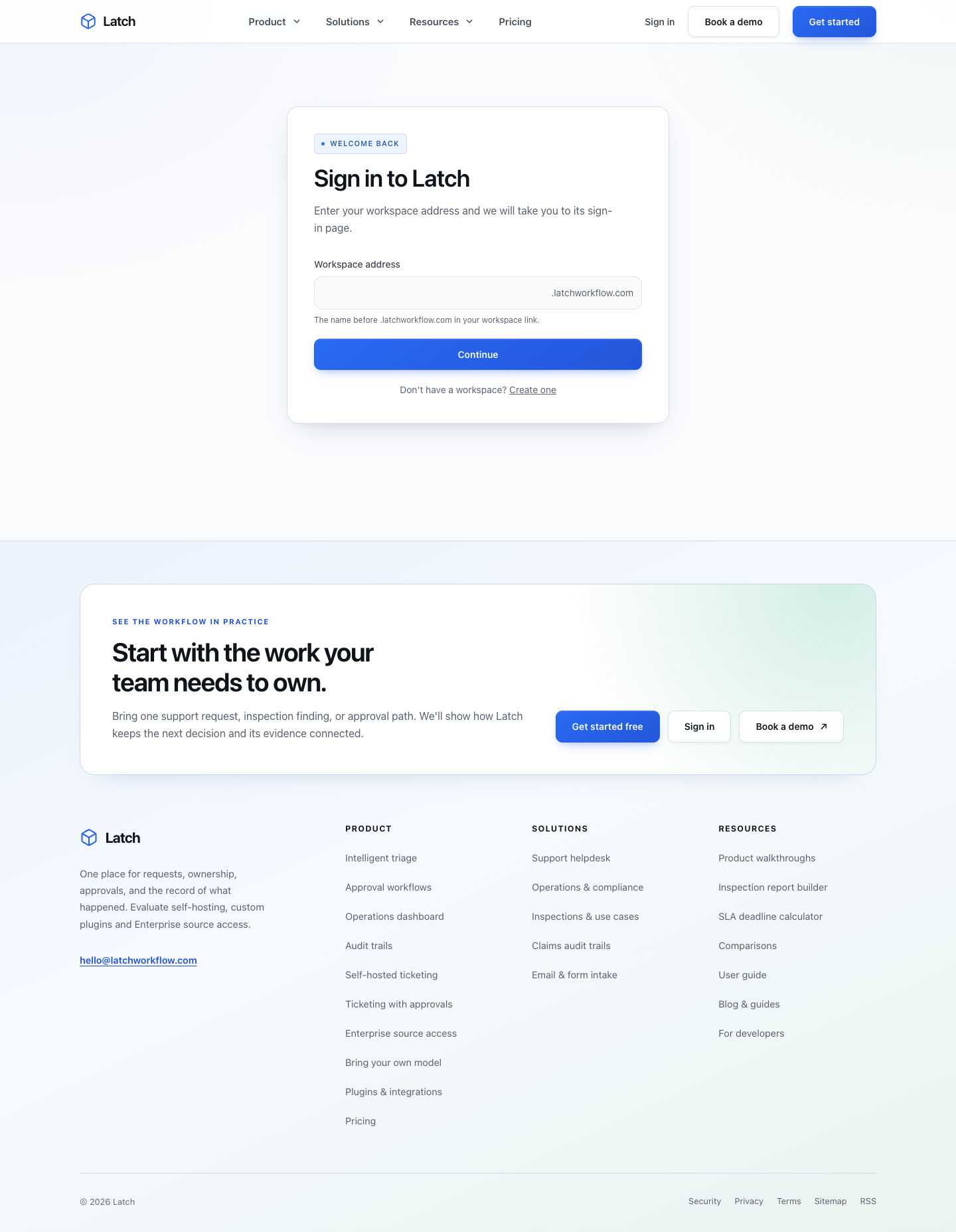
The public sign-in page, captured on 2026-10-05. The page was viewed without entering credentials.
Treat this field as an address entry point, not a directory search. Share the workspace URL with invited colleagues so they reach the intended sign-in page. For a narrow collaborator role after setup, see how Ticket Owner access is scoped to a person's own tickets.
Know what the free workspace includes
New free workspaces begin with bounded capacity: up to 100 tickets and 250 MiB of attachment storage. Outbound replies, acknowledgments, and notifications are disabled. Identity messages such as activation, invitations, and password resets remain available up to 20 messages per workspace in a rolling 24 hours, so an administrator can still onboard and recover users.
Those limits shape the workflow from the start. A small service desk can log its incoming work and attach relevant files, while it should plan another approved route for customer replies and notifications. A team can also organize ongoing work with projects for sites, assets, and recurring work; signup does not require every operating choice to be made up front.
Workspace creation proves the requester controls an email address and asks Latch to prepare a workspace. It does not enroll every colleague or grant them the same permissions. Add people through the workspace's access process, assign only the role each person needs, and send them the correct sign-in address. When the team is ready to manage external automation credentials, review the MCP agent access lifecycle.
Start at latchworkflow.com/start, confirm the verification request from the intended work inbox, and wait for the separate activation message before asking colleagues to sign in.